
Restaurant operations · Austin, Texas
The whole restaurant, on one calm screen.
Yuksell connects the floor, the kitchen and the back office. Seat guests on a floor plan that matches your room, take orders on iPad, send tickets to the right station, close cash shifts by count — and manage menus, prices and stock for every location from the web.
- Front of house
- Kitchen
- Back office
- Supply chain
- Multi-store

Built for the people who actually run service.
Restaurant staff are busy, not technical. So Yuksell follows a few plain rules.
- 01
A missing price is never “free”.
A dish without a price can’t be added to an order. An empty price never shows up as $0.
- 02
An uncertain payment isn’t an unpaid one.
If a payment times out, Yuksell keeps the order and has staff check the result before charging again.
- 03
Your work stays when something fails.
A failed upload or save never pretends to succeed. What you entered stays on screen, ready to retry.
- 04
Status in words, not just color.
Tables, orders and payments show text and icons with every color, so nobody has to tell red from green.
What it covers
Everything from the front door to the stockroom.
One system for the people who seat, cook, count and order — with each role seeing only the work that’s theirs.
-
#01
Front of house
Seating, reservations and ordering that follow how your room really works.
- A floor plan that matches your room: real table shapes, chairs, walls and doors
- Reservations on a timeline — drag to move, drag the ends to change length, undo
- Walk-ins, joined tables, and shared tables with a separate bill for each party
- Held orders, extra dishes, and table QR menus — staff accept every guest request
-
#02
Kitchen
Tickets the line can read at a glance, routed to the right station.
- Tickets by station, table and dish, with notes and allergen notices up front
- Mark dishes done one at a time, and recall a mistake
- All-day counts for each station
- Default routing by category, with exceptions for single dishes
-
#03
Back office
Menus, prices, people and numbers — on iPad or in the browser.
- Dishes with photos, names in several languages, options and combos
- Store prices, time-based prices and availability
- Sales trends, payment mix, best sellers and CSV export
- Guest records and members; staff accounts with roles and an approval PIN
-
#04Optional module
Supply chain
Stock that reflects what’s actually on the shelf.
- Stock levels and low-stock warnings
- Counts recorded as counted, not as theory
- Replenishment requests, approval, and receiving only what actually arrived
- Purchasing, transfers, returns and waste
-
#05
Multi-store
Run several locations without copying work between them.
- Store groups with shared menu templates and price plans
- Set one store’s price without touching the others
- Staff switch between the stores they work at in Settings
- Supply chain linked to the same stores and menu items
Product tour
A look at a working day.
Screens from Yuksell HD, the iPad workstation. Pick a part of the day.

Floor
Every table, at a glance.
See which tables are free, dining, waiting to pay or need clearing — with party size, time seated and the running total.
- Tap a table to view its order, add dishes or move the party
- Filter by area: main room, window, private rooms
- Take-out orders without picking a table

Reservations
Plan the evening on a timeline.
Bookings sit on each table’s row, with a live line for the current time. Drag a booking to move it; drag its ends to change the length.
- 4-hour, 8-hour and full-day views
- A queue for bookings that don’t have a table yet
- Walk-ins and temporary tables in one tap
Ordering
Take an order in a few taps.
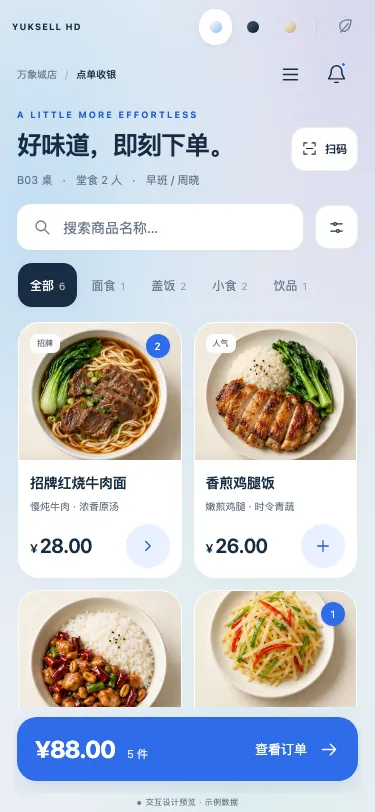
Categories, search and photos on the left; the order, options and notes on the right. Dark mode keeps the screen easy on the eyes during evening service.
- Options, sizes and combos with clear rules
- Notes per dish, such as “no cilantro”
- Hold an order and come back to it
Menu
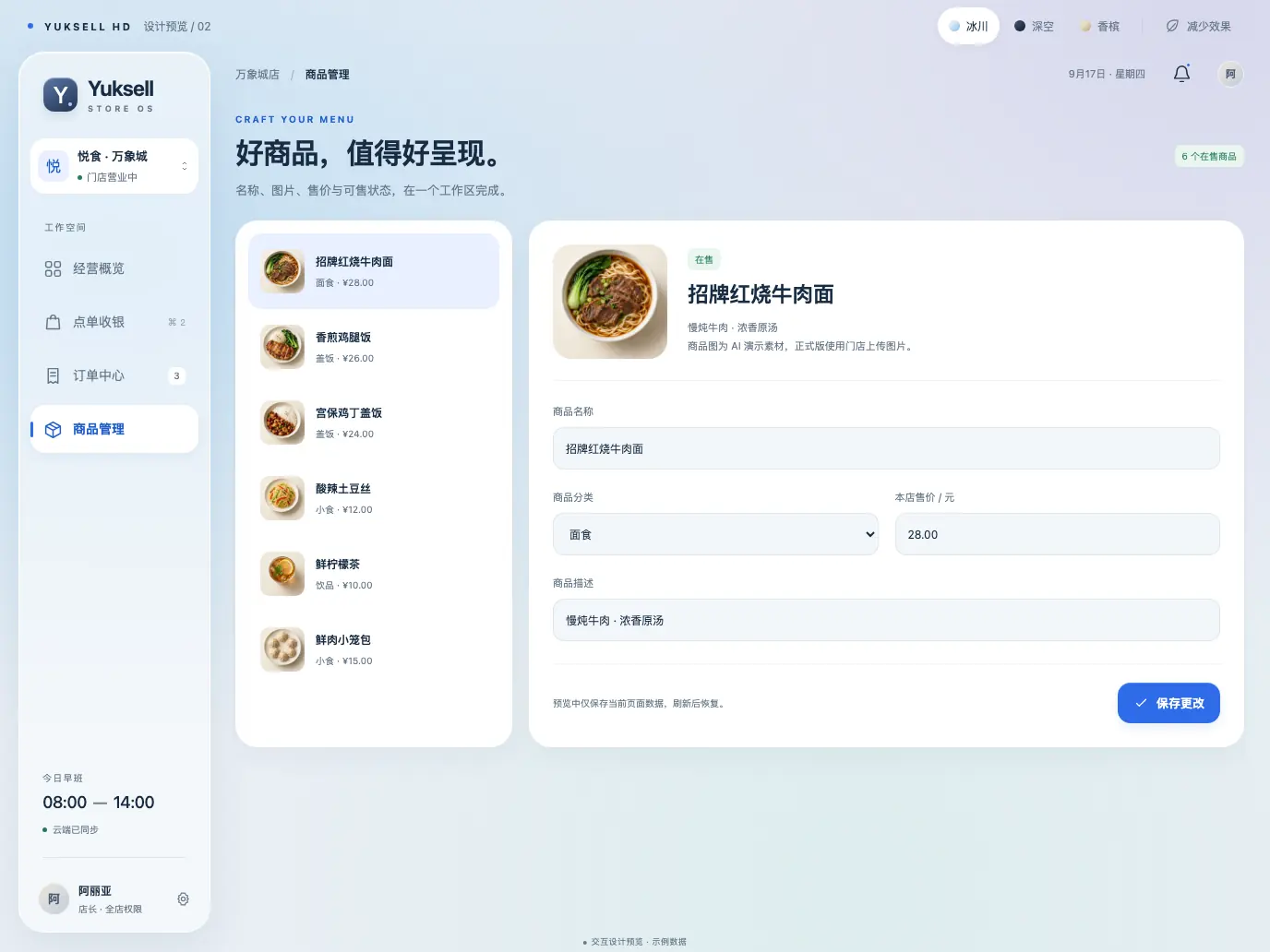
Edit dishes where you work.
Change a dish’s photo, name, category and store price on the iPad. Yuksell reads the saved values back, so what you see is what guests will pay.
- Upload from the photo library or reuse an existing image
- Names and descriptions in several languages
- An unpriced dish stays unavailable, never free
Kitchen
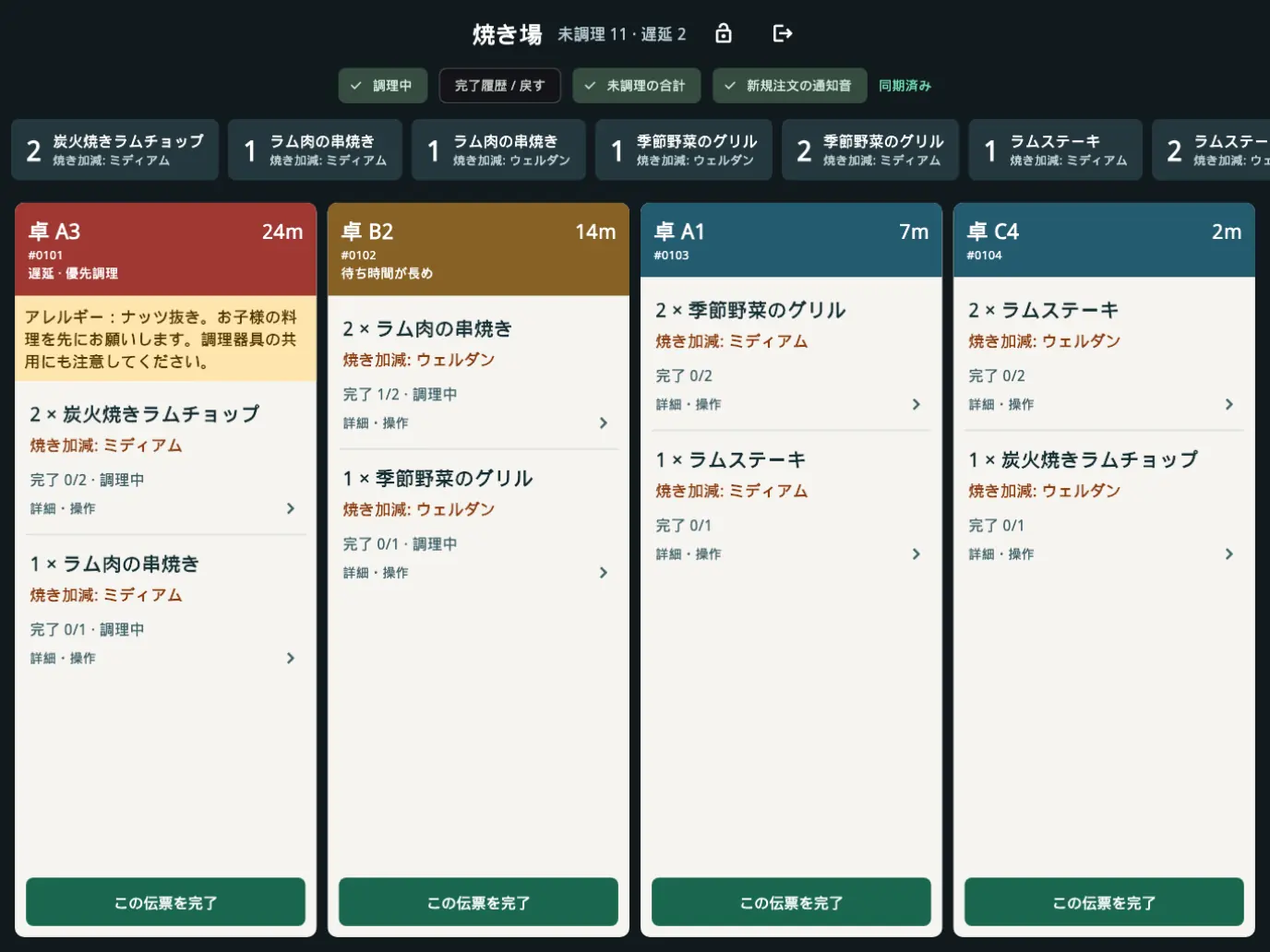
Tickets the line can read.
Each station sees its own tickets with table, wait time and dishes. Delayed tickets stand out, and allergy notes appear before the first dish.
- All-day totals across the top
- Complete part of a ticket as dishes are ready
- Completion history with recall

Inventory
Today’s stock tasks, nothing else.
Deliveries to receive, counts to finish and low-stock warnings for this store, with quantities always shown with their units.
- Receive only the quantity that arrived
- Save a count as a draft and finish it later
- Request replenishment when stock runs low
Overview
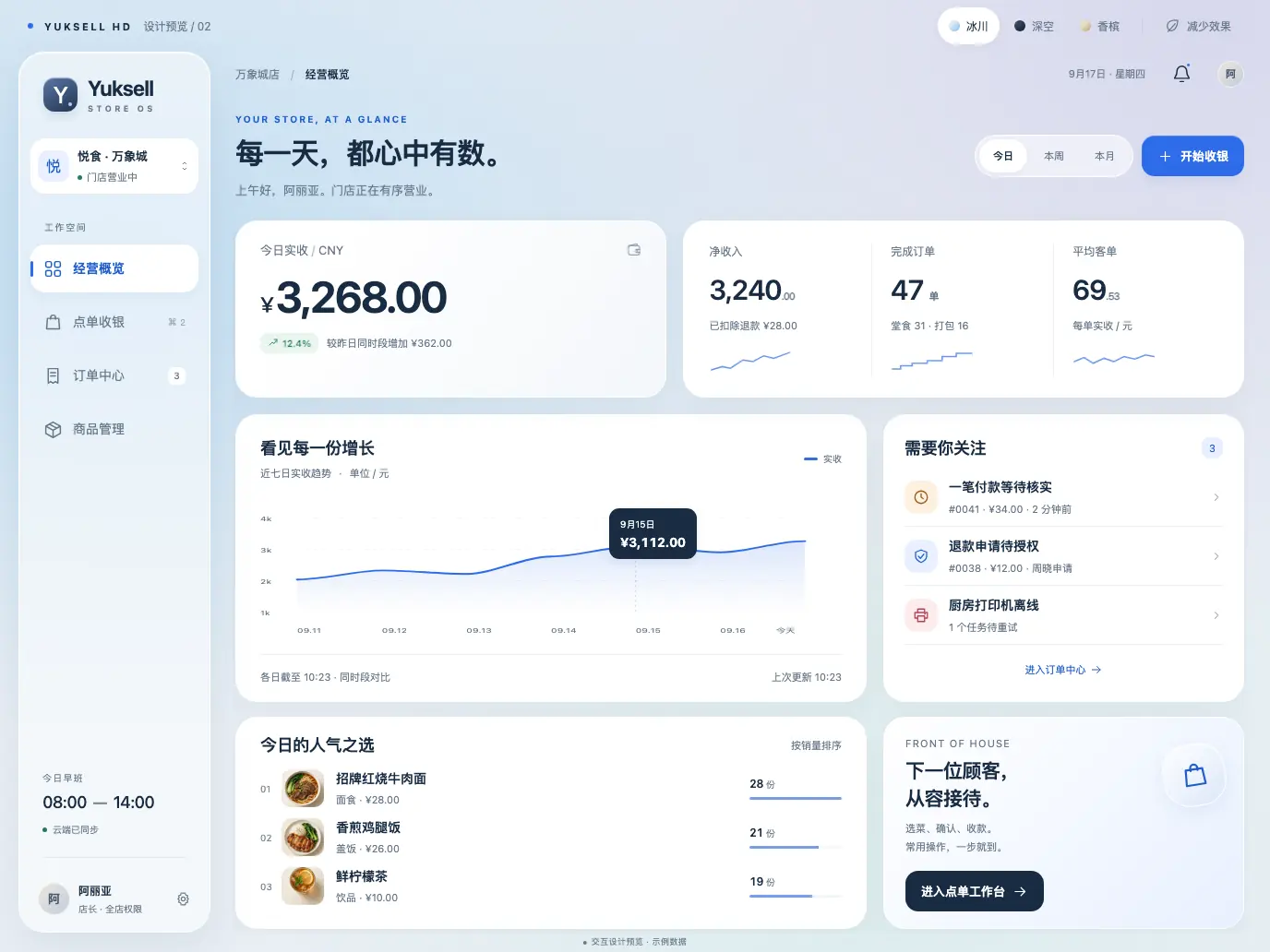
Know how the day is going.
Collected revenue, net after refunds, completed orders and average check — each labeled with exactly what it counts.
- Seven-day trend compared at the same time of day
- Items that need attention, like a payment to verify
- Today’s best sellers
Payments
Payments, recorded honestly.
Every order, shift and report adds up — because Yuksell records how each bill was actually paid.
Yuksell doesn’t process card payments itself today. Keep the card terminal you already use: complete the charge there, then record it in Yuksell.
Cash, with change
Enter what the guest hands over and Yuksell shows the change. The order records the exact amount.
Cards on your terminal
Finish the payment on your existing terminal, then record it as an external-terminal payment.
Refunds from the original order
Refunds start from the confirmed original order, with amount and reason. Card refunds are done on the terminal first.
Shift close by count
Opening float, cash in and out with reasons, a count by denomination, and a note for any difference.
Devices
One account, three screens.
Staff use the screen that fits the job. Owners and managers can do the rest from a browser.
-
iPad
Yuksell HD
The workstation for the floor, the counter and the kitchen. Designed for 11- and 13-inch iPads, in landscape and portrait.
-
Phone
Yuksell on your phone
The same daily workflows on a smaller screen — ordering, shifts, the how-to guide, and feedback with screenshots.
-
Web
Back office
Menus, price plans, stores, staff, printers and reports in the browser.
Sign in to the back office →
Languages & accessibility
Everyone on shift, in their own language.
A team that speaks several languages shouldn’t have to share one screen language.
- English
- 简体中文
- 日本語
- ئۇيغۇرچە
Choose a language per device
Yuksell HD runs in English, Simplified Chinese, Japanese and Uyghur, including a full right-to-left layout.
Menus in several languages
Enter dish names and descriptions in more than one language. Guests choose their language on the table QR menu.
A built-in how-to guide
33 step-by-step guides for every role, in four languages, readable even when the connection drops.
Comfortable to use all day
Light and dark appearance, reduced motion, large touch targets, and status that never relies on color alone.

FAQ
Questions owners ask us.
Does Yuksell process credit card payments?
Not today. You keep your current card terminal, complete the payment there, and record it in Yuksell as an external-terminal payment. Cash payments, change and refunds are recorded directly in Yuksell.
What do I need to get started?
An iPad for the floor and counter, an internet connection, and a modern web browser for the back office. A phone is optional. Receipt and kitchen printers are set up under Settings — tell us which printers you have and we’ll check them with you during the demo.
What happens if the internet goes down?
Yuksell needs a connection to save orders and payments. If the connection drops, Yuksell says so, keeps the cart or form on screen, and asks staff to check whether the original action went through before retrying. The built-in how-to guide works offline.
Can I run more than one location?
Yes. Group your stores, share menu templates and price plans, and set prices for one store without changing the others. Staff can switch between the stores they work at.
Is inventory and supply chain included?
Day-to-day stock tasks — counts, receiving, waste and low-stock warnings — live in the iPad app. The full supply chain workspace for purchasing, transfers and returns is an optional module. Ask us what fits your restaurant.
Which languages are supported?
The iPad app runs in English, Simplified Chinese, Japanese and Uyghur. Each device can use its own language, and dish names can be entered in several languages for guests.
How much does Yuksell cost?
Contact us for pricing. We’ll ask about your locations and what you need first.
See it for yourself
See Yuksell at your own counter.
Tell us a little about your restaurant and we’ll set up a walkthrough.
Or email us at [email protected]